
Introduction
The desire to remove the guitar part from a song is a common occurrence among artists, sound engineers, and even casual music enthusiasts. If you want to play the guitar parts you have recorded, create backing tracks, or simply have fun with your remix, reducing the guitar volume can be a great benefit.
It was once only possible in professional studios equipped with expensive equipment, but now stem splitters driven by AI, desktop audio editing software, and mobile apps have democratized this process to the point where anyone can do it with ease.

Method 1: AI Stem Splitter
EaseUS AI Stem Splitter is an innovative web-based tool that enables you to isolate or remove the instrumental parts of a song, such as a guitar, without compromising the overall sound quality. By utilizing smart AI audio separation technology, it is easy to isolate vocals, drums, bass, piano, or guitar individually with just a few clicks. Absolutely, the tool becomes a good choice when it comes to slow, rapid, or karaoke track-producing, as it offers a quick and easy solution.
Key features
- Isolate vocals, drums, bass, piano, and guitar from songs.
- Support various file formats, including MP3, WAV, MP4, FLAC, OGG, and others.
- Easily turn off the sound from YouTube video links and SoundCloud.
- Leveraging AI for cleaner separation and low leakage of the audio.
- Completely online, thus no installation is needed, and it still has free and paid plans.
Step-by-step guide to remove guitar track via EaseUS AI Stem Splitter
Step 1. Go to the EaseUS AI Stem Splitter website and click on Choose File to upload your song or paste a link from YouTube. You can upload tracks with a maximum file length of 60 minutes and a maximum file size of 1GB.

Step 2. The AI will analyze your audio and return separate vocals, drums, bass, piano, and guitar.
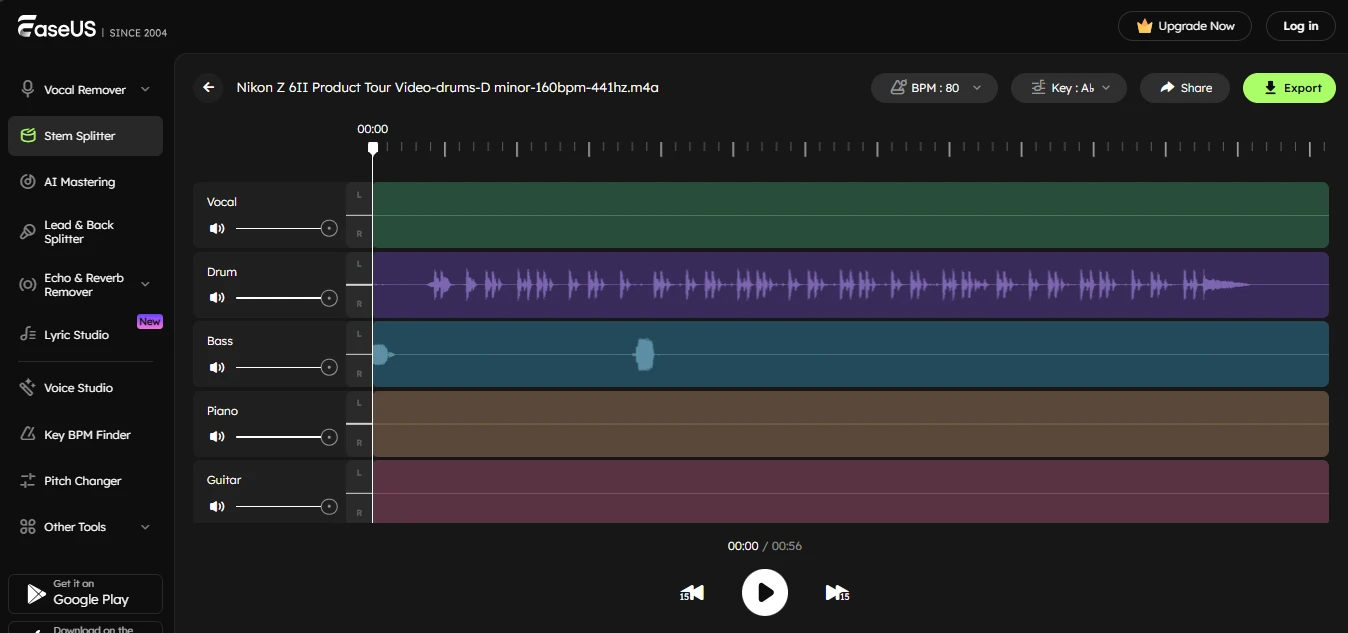
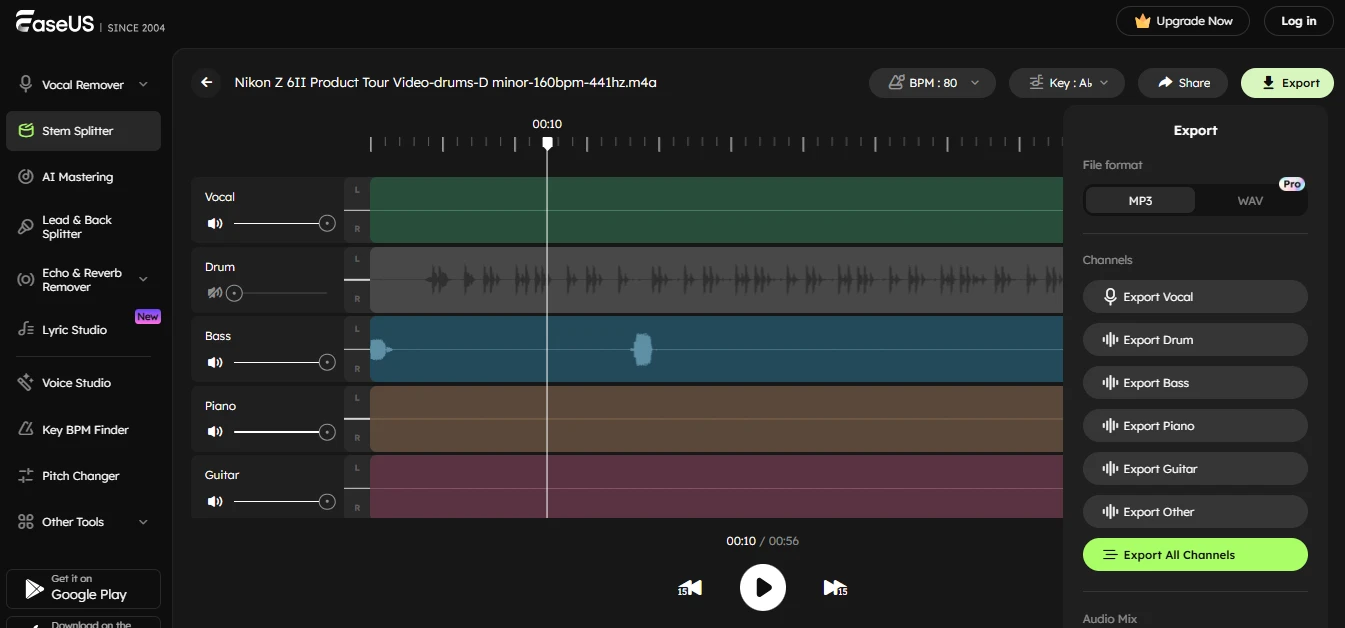
Step 3. Click Export and select Export Guitar to download it.
Method 2: Desktop Audio Editing Software
Audacity is free and open-source audio editing software that is known to be a primary choice for music editing and mixing. Although it doesn't directly employ AI like online stem splitters, it still allows users to have manual control of the audio tracks, such as the option to remove or reduce the guitar part. Using its standard effects, you can lower the guitar volume and make your backing tracks sound nicer for practice or remix.
Key features
- Audacity is an audio editor that is 100% free and open source with no restrictions.
- It is cross-platform software that works on Windows, macOS, and Linux.
- One of the features is the voice reduction and isolation effect, which is used to remove the voice from the track.
- The software supports a variety of audio formats, including MP3, WAV, and OGG.
- The program provides professional audio editing tools to help you fine-tune your audio.
Step-by-step process
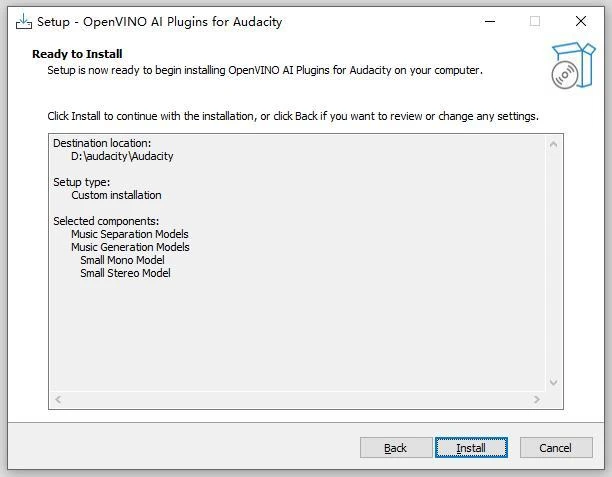
Step 1. You first need to download and install the Music Separation plugin for Audacity. Open the installer, click Next, customize the options if required, and then complete the installation.
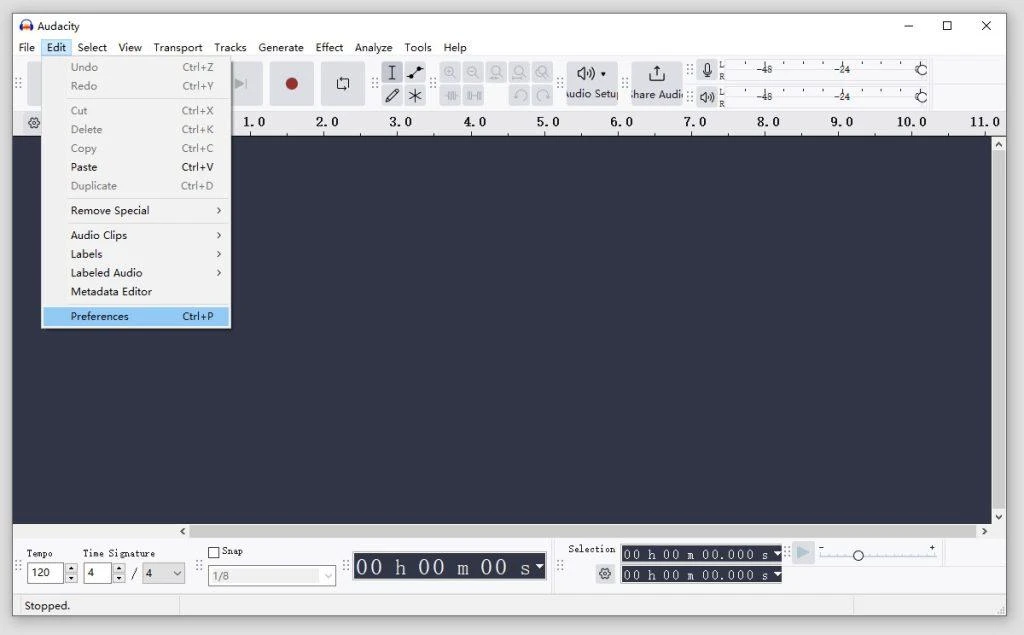
Step 2. In Audacity, go to Edit > Preferences > Modules, select the checkbox next to mod-Openvino, and restart the program.
Step 3. You need to upload your audio file, highlight the range, then go to Effect > AI Effect > Music Separation. Select a separation mode (Drum, Bass, Vocal, or Others) to obtain the stems.
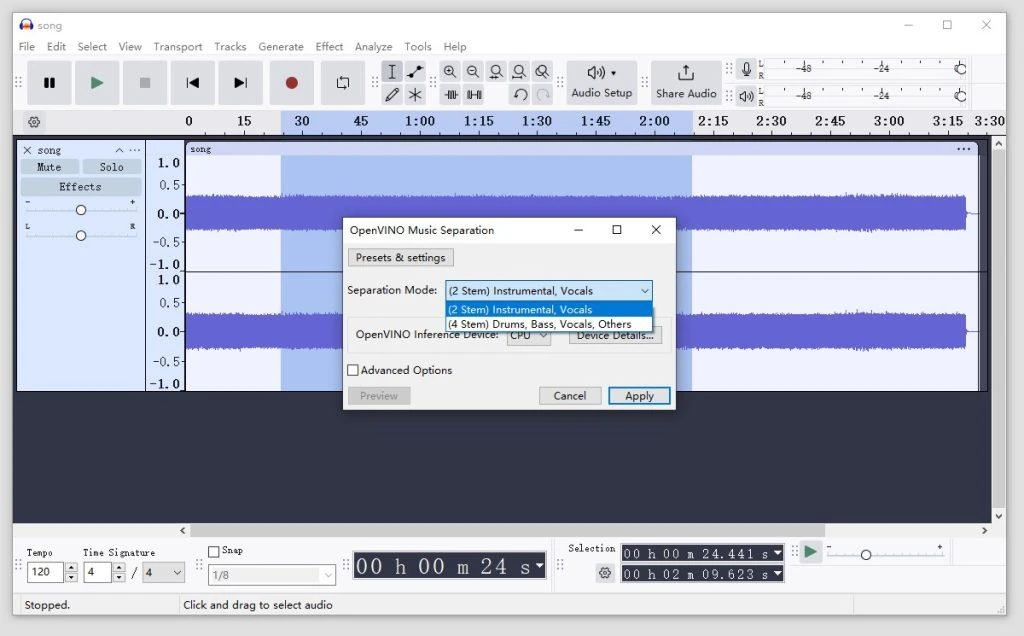
Step 4. Once previewing, mute or decrease the guitar stem volume until it is barely audible. Save the result when happy with it.
Method 3: Mobile Applications
One of the best AI-powered music applications, which has won the trust of millions of musicians worldwide, is Moises.ai. Created to be used for practice, learning, and production, it enables you to release stems separately, such as vocals, drums, bass, piano, and guitar, with the highest studio quality. On your mobile, web, or tablet, Moises.ai is always handy when you want to isolate or mute instruments, allowing you to create custom backing tracks or clean mixes while on the move. Among the best music apps, as awarded by Apple, the app is a necessity for guitarists, producers, and educators.
Key features
- High-quality fidelity for stem separation entirely powered by AI.
- Both isolation and muting are available for vocals, drums, bass, guitar, and other instruments.
- With three versions available —mobile (iOS, Android), web, and tablet —users can choose the most suitable one for their needs.
- Keeping the tradition of studio-quality sound, the app brings it without the need for your professional equipment.
Step-by-step process
Step 1. Either on your phone or desktop, open Moises.ai and upload your track by clicking the + to select a file or entering a link.
Step 2. Choose the guitar as the source to be separated and confirm the process.
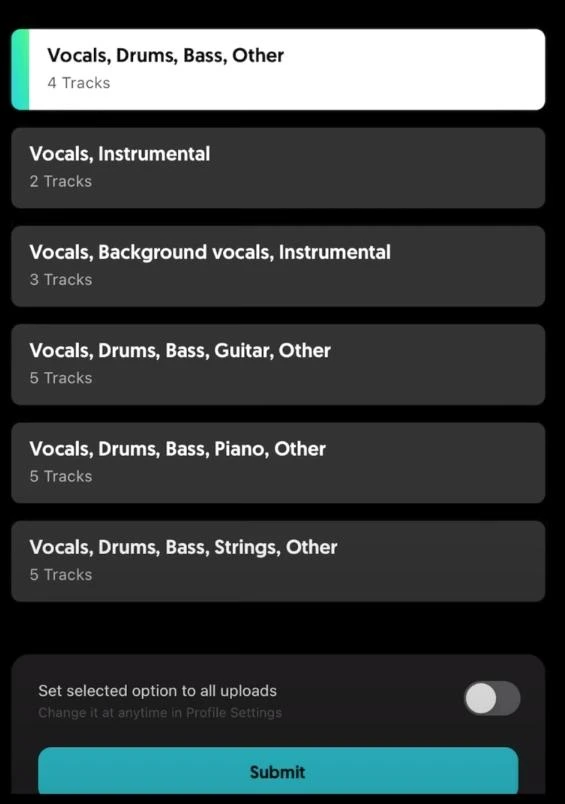
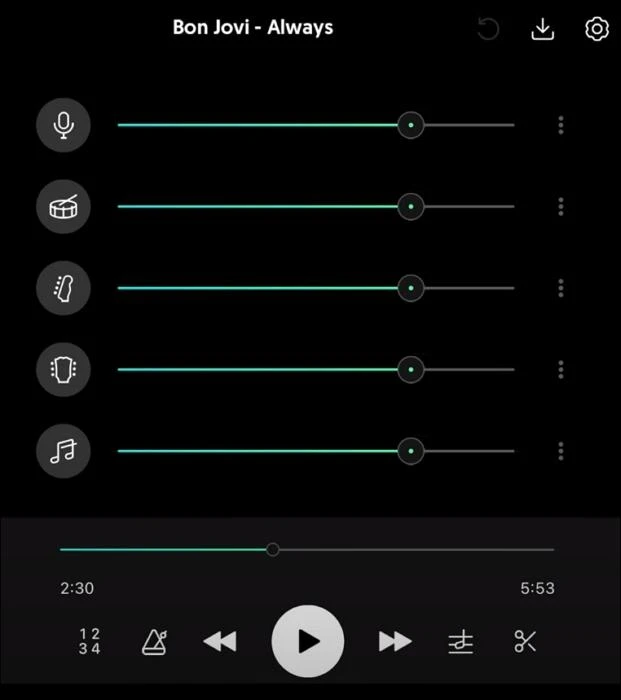
Step 3. Listen to the separated stems, deactivate or reduce the volume of the guitar stem, and save your mix.
Conclusion
With the advent of contemporary AI tools, computer programs, and mobile applications, extracting the guitar part from a song has become a significantly simpler process. Regardless of whether you want to use EaseUS AI Stem Splitter for an instant online separation, Audacity for accurate desktop editing, or Moises.ai for the easy handling of your mobile device, every approach provides a straightforward means of either guitar track isolation or muting for one's own practice, remixing, or making of customized mixes. Choose the software that is most compatible with your way of working and become musicians of your own making!


